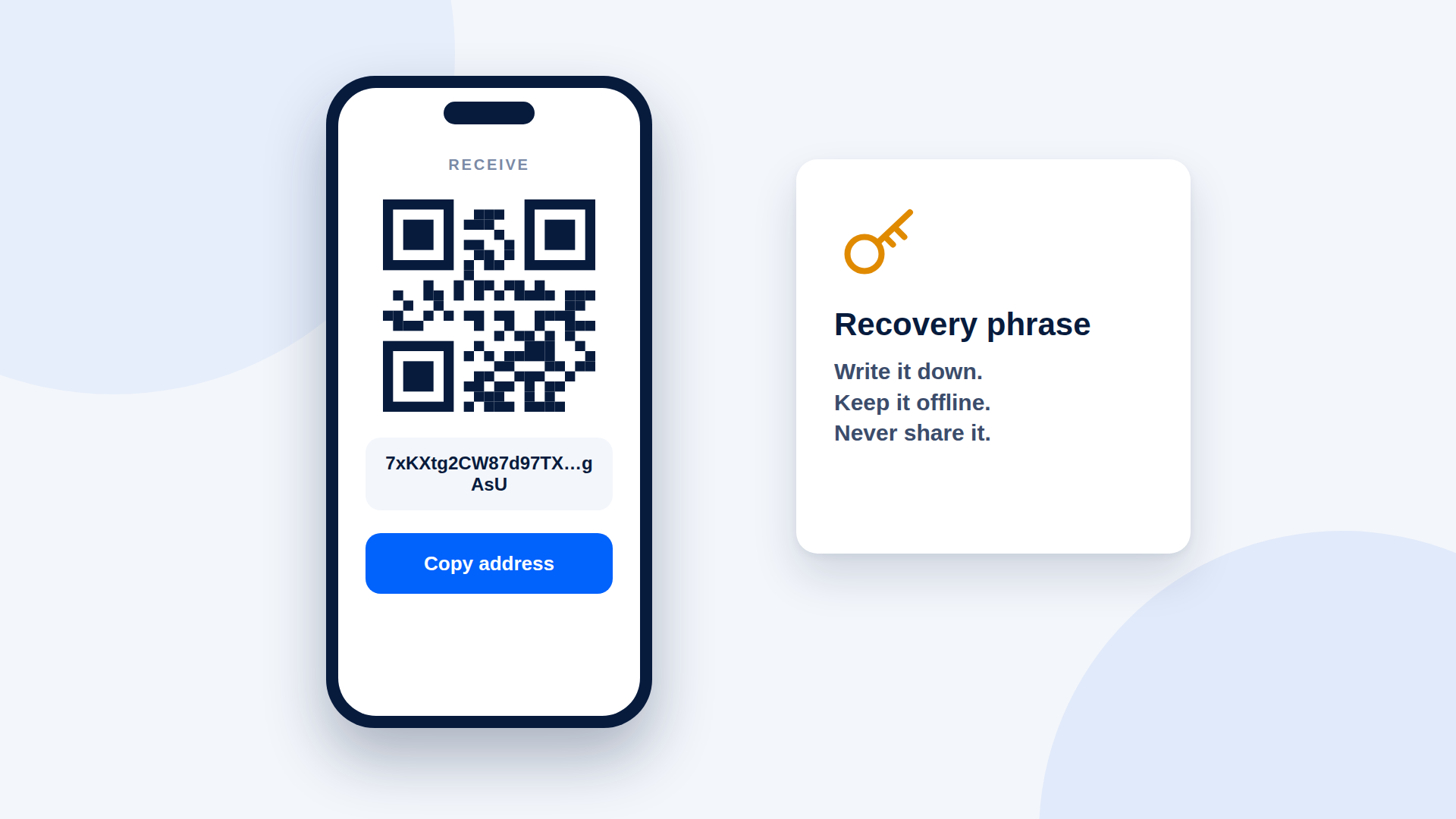
To receive payments on Solana, install a wallet from an official source, create a new wallet, write down your recovery phrase offline, copy your receive address, and test it with a small payment. The whole process takes a few minutes. The part that deserves your time is the backup.
Before you start
Know what you want the wallet for. A wallet for receiving business payments should be separate from one you use to explore apps, because the two have different risk levels.
Step 1: Choose a wallet
Popular Solana wallets include Phantom and Solflare. Hardware wallets are worth considering if you will hold meaningful balances. Whichever you pick:
- Download it only from the official website or your phone's official app store.
- Check the publisher name and be wary of lookalike apps.
- Avoid browser extensions you found through ads or messages.
Step 2: Create a new wallet
Choose "create new wallet" (not "import") and set a password or passcode for the app. This password protects the device; it is not the same as your recovery phrase.
Step 3: Back up your recovery phrase
The wallet will show a list of words, usually twelve or twenty-four. This phrase is the master key to your funds.
- Write it on paper, in order.
- Store it offline, somewhere safe, ideally in more than one place.
- Never photograph it, store it in notes, email it or paste it into any website.
- Never share it. No genuine wallet, exchange or support agent will ask for it.
If you lose the device but have the phrase, you can restore the wallet. If you lose the phrase and the device, the funds are gone.
Step 4: Find your receive address
Open the wallet and choose "Receive". You will see your address and a QR code. The address is a long string of letters and numbers. It is safe to share; it only lets people send you funds.
To receive USDC, you use the same Solana address. The token appears in your wallet once funds arrive.
Step 5: Test with a small payment
Send a small amount from another wallet or an exchange account and confirm it arrives. Then send a small amount back out, so you know you can use the funds. Do this before you give your address to a client.
Step 6: Add a little SOL
Solana network fees are paid in SOL. If you will send funds from this wallet, such as refunds or transfers to an exchange, keep a small SOL balance for fees.
Security habits that matter
- Keep your phone and computer updated.
- Use a hardware wallet for larger balances.
- Double-check addresses by comparing the start and end characters, not only the first few.
- Be suspicious of unsolicited links, "support" messages and airdrops asking you to connect your wallet.
- Revisit connected apps from time to time and remove what you do not use.
Receiving payments for a business
Use a dedicated wallet, agree who has access, and keep records of every payment. If several people handle funds, consider a setup that does not rely on one person's device.
Where DePayLink fits
Once your wallet is ready, you can paste its address into DePayLink to create a SOL or USDC payment link on Solana. DePayLink does not hold your funds: payments go directly to the wallet address you entered, and DePayLink checks the transfer on-chain. The Free plan lets you save one wallet address; Pro allows up to three.
Frequently asked questions
Is a Solana wallet free?
Creating a wallet is typically free. Sending transactions costs a small network fee.
Can I use the same wallet for SOL and USDC?
Yes. One Solana address receives both. USDC appears as a token.
What if someone gets my wallet address?
They can send you funds, not take them. The recovery phrase and private keys are what must stay secret.
Should I use an exchange address instead?
Exchange deposit addresses are managed by the exchange, so you do not control the keys. For business payments many people prefer a wallet they control.